How to Use ZipTok
Follow these simple steps to repost TikTok videos in HD quality without watermarks
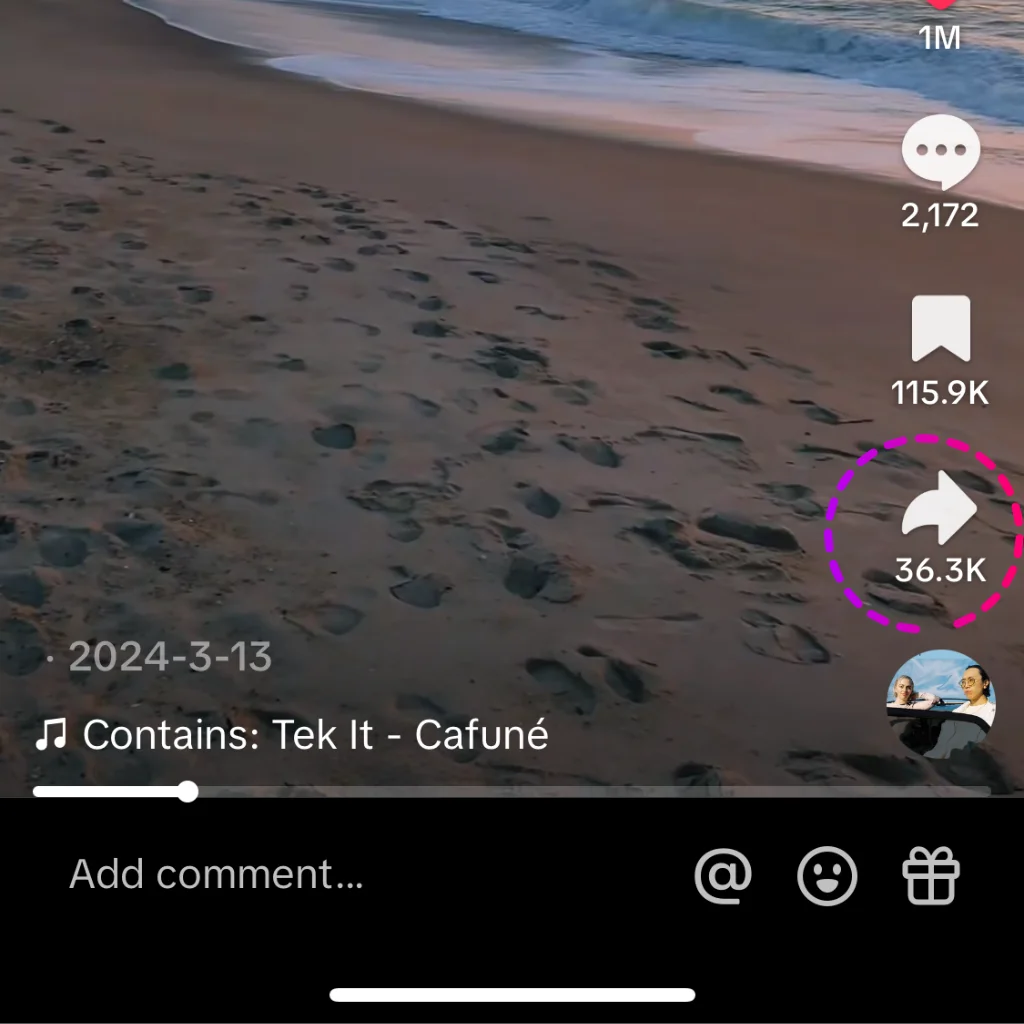
Step 1: Open TikTok App
Find the video you want to bookmark. Tap the "Share" button
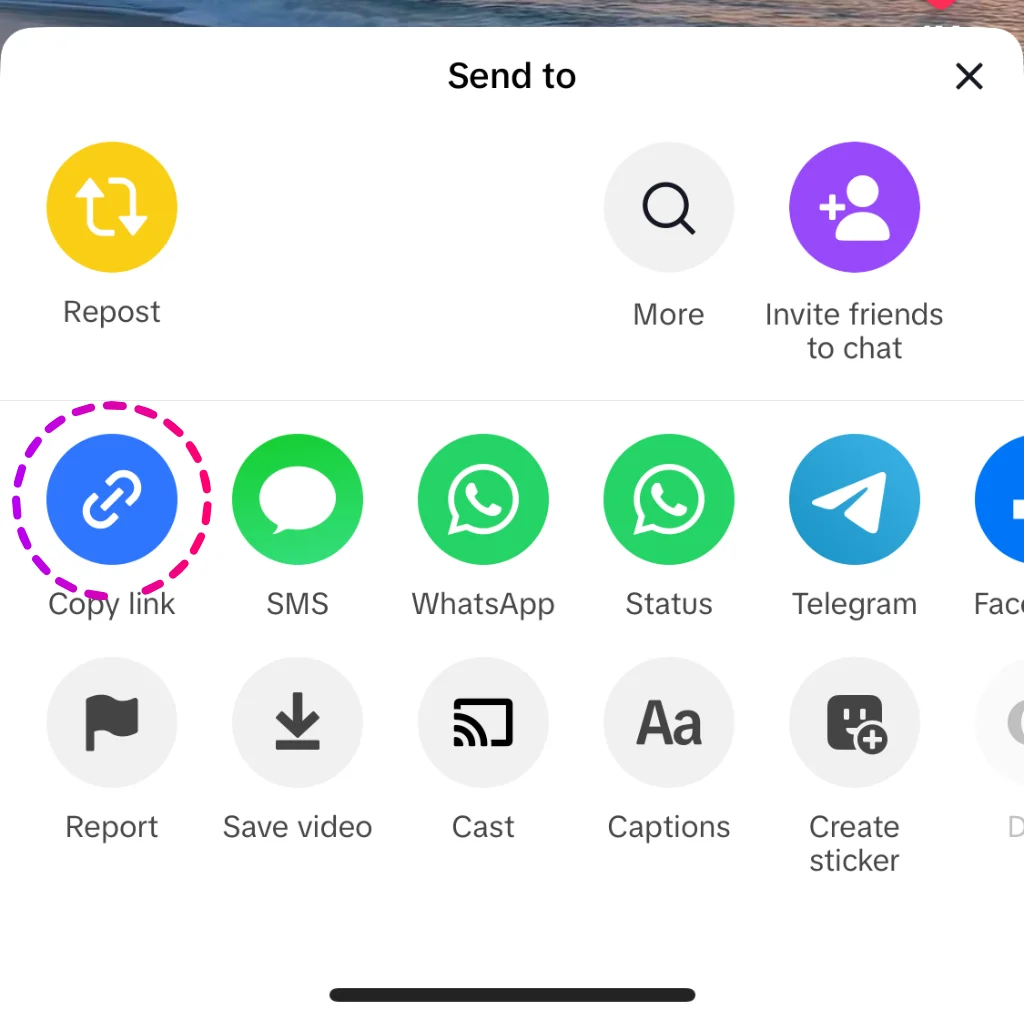
Step 2: Copy TikTok Video Link
Tap "Copy Link" from the options.
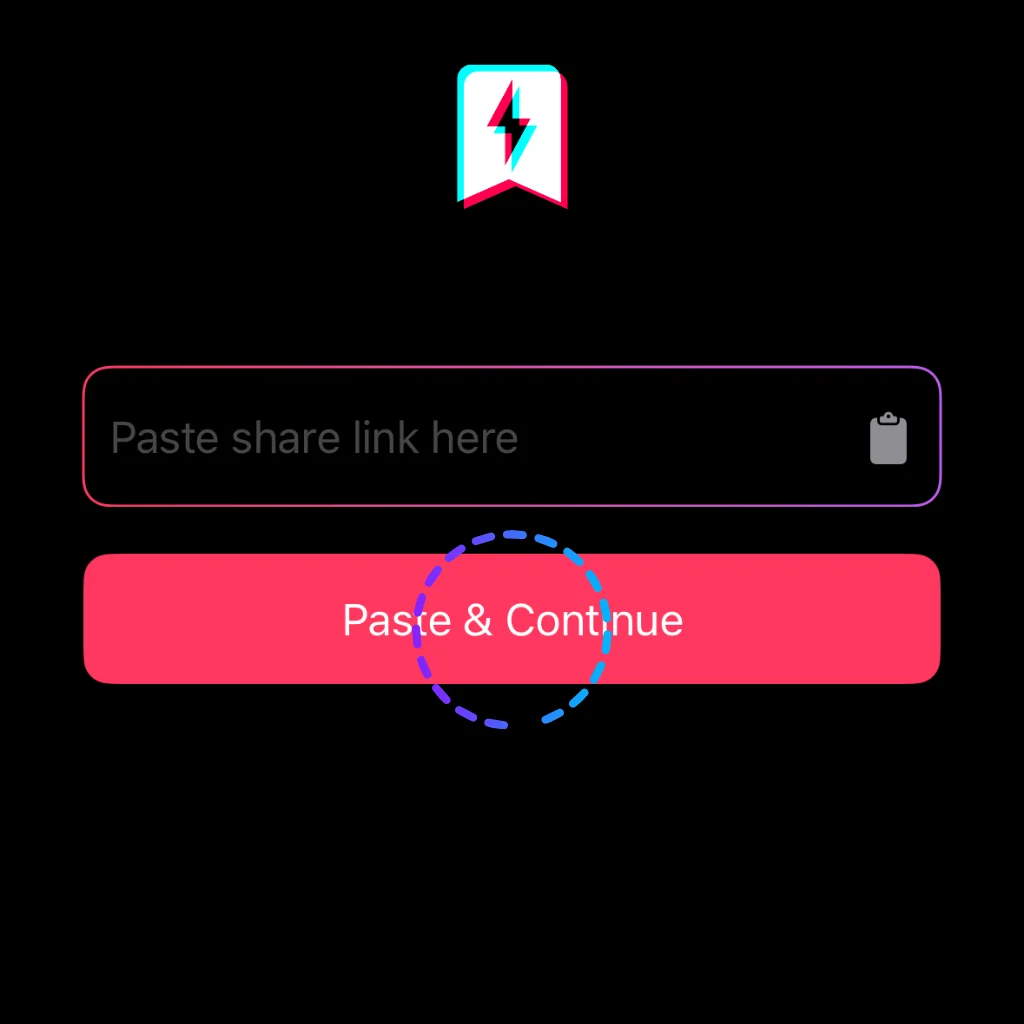
Step 3: Paste Link In ZipTok
Return to ZipTok and press the "Paste" button. The app will automatically detect the link from your clipboard.
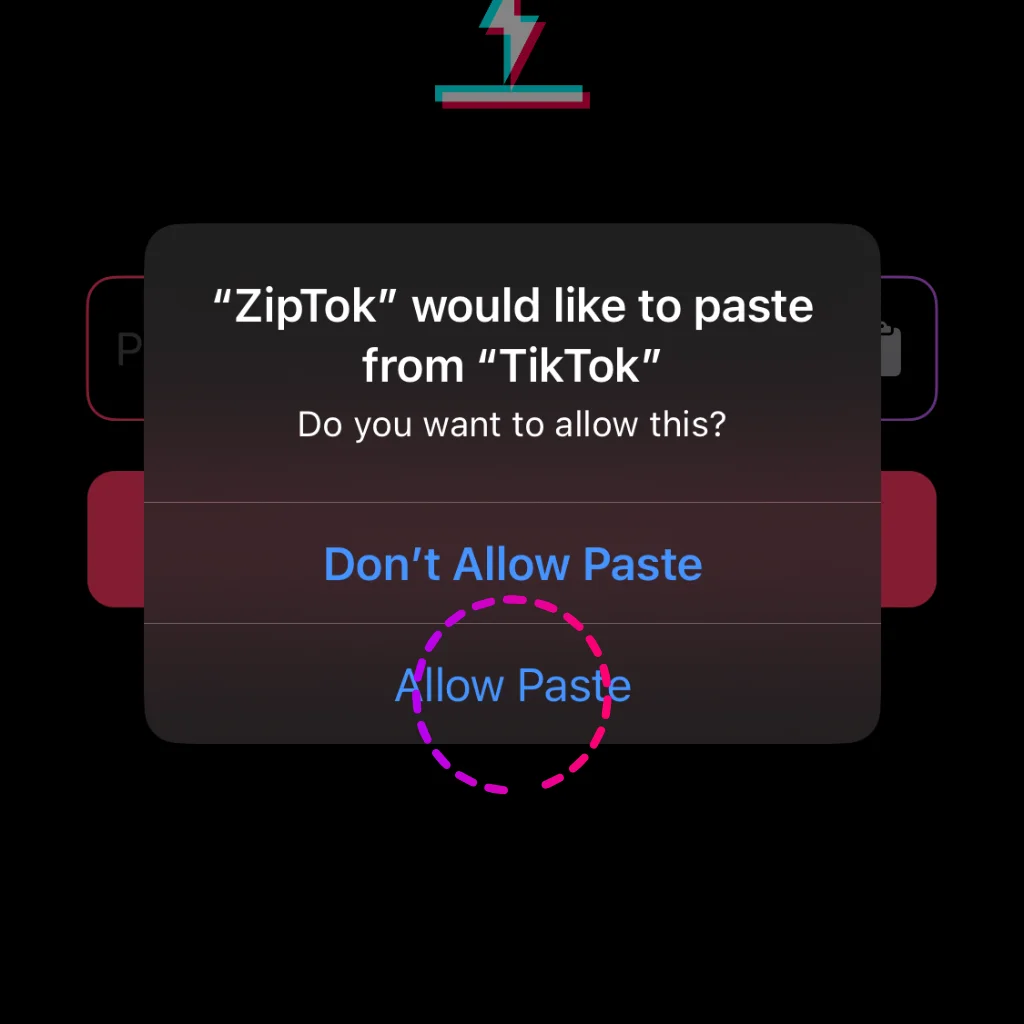
Step 4: Allow ZipTok Access Clipboard
The first time you use it, you will be asked to allow access to your clipboard. Select Allow Paste
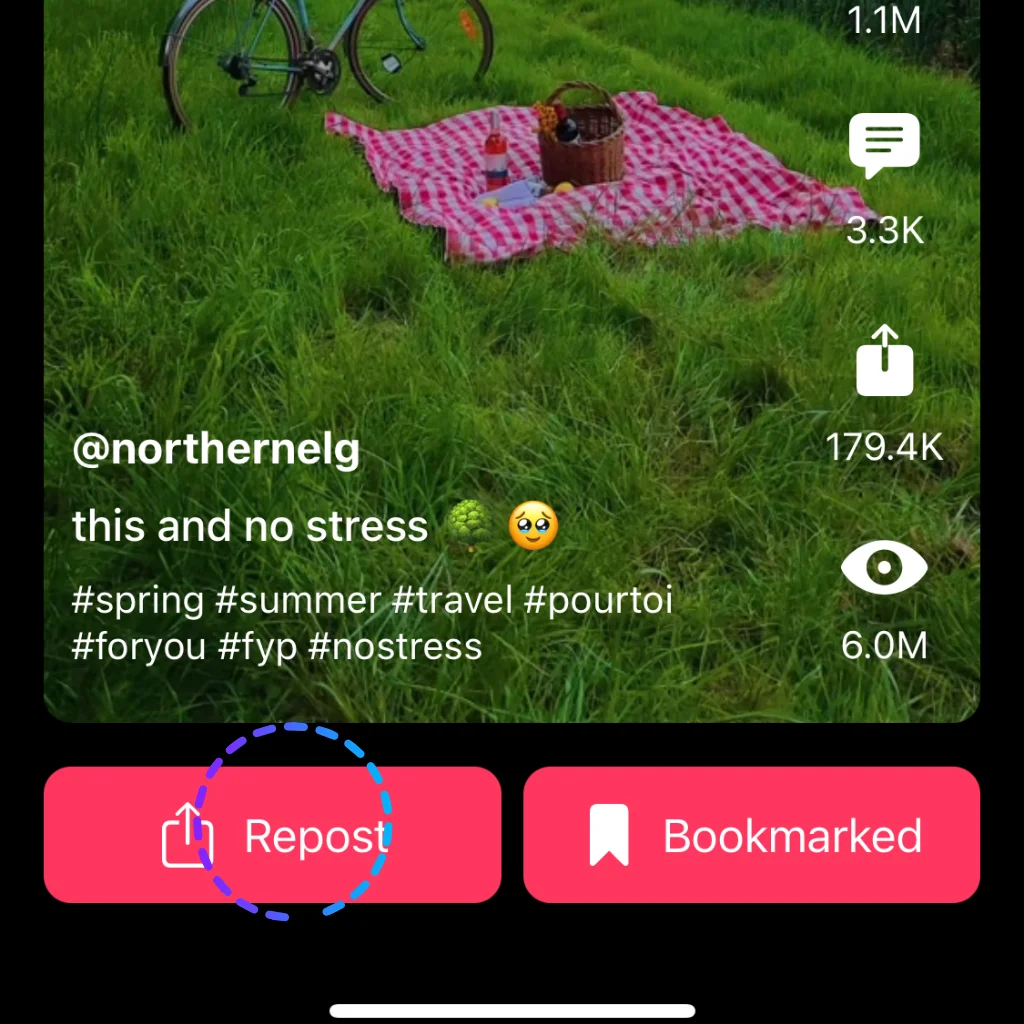
Step 5: Repost Video
ZipTok will take a few seconds to retrieve the video information. If the video link is correct, you will see the result
Long press the text area if you want to copy video title and tags
Press "Repost" button to continue
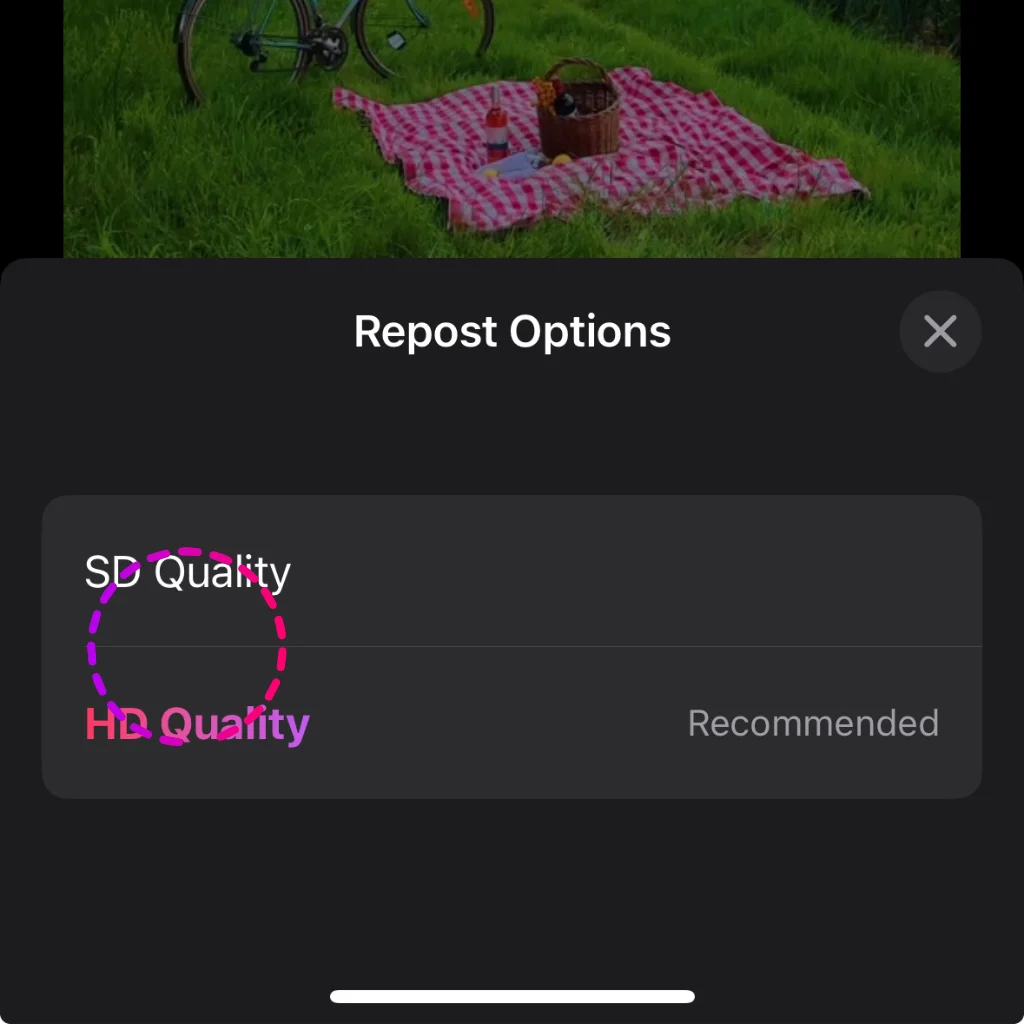
Step 6: Select Repost Quality
There are two quality options. If you want to repost with better quality, choose HD.
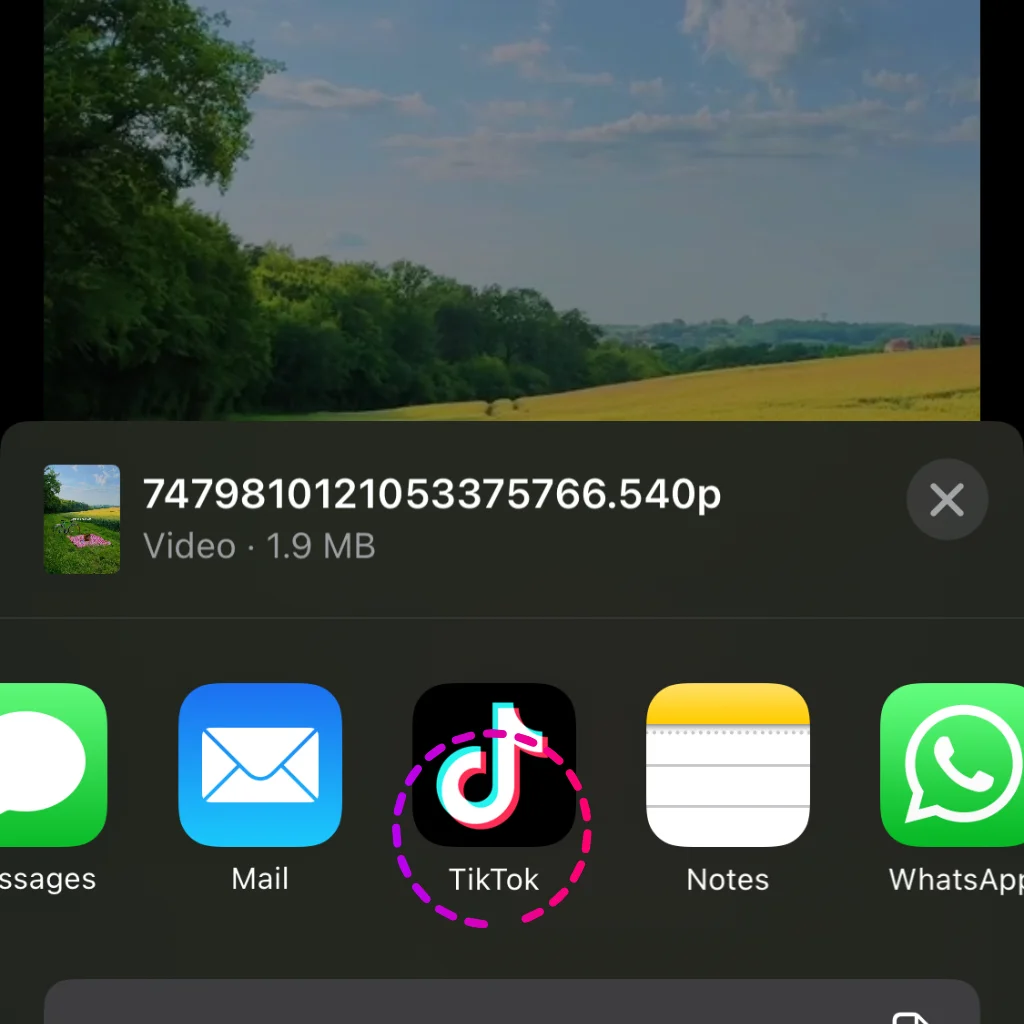
Step 7: Repost Video
Choose an App to repost it
Frequently Asked Questions
Get answers to the most common questions about ZipTok